Passkeys
A passkey signs you in to InstantFeedback with your fingerprint, face, or device PIN instead of a username and password. The passkey is stored by your device or password manager, for example iCloud Keychain, Google Password Manager, Windows Hello, or 1Password, and never leaves it.
- No password to type and nothing to remember.
- No authenticator code, even when two-factor authentication is on.
- Passkeys belong to your user, not to an account. One passkey signs you in to every InstantFeedback account you are a member of.
- You can register as many passkeys as you like, for example one per device.
Before you start
- You need a device and browser that support passkeys. Current versions of Chrome, Edge, Safari, and Firefox do, on desktop and mobile.
- You need somewhere to store the passkey: the built-in password manager of your operating system or browser, or a password manager app that supports passkeys.
- Passkeys do not replace two-factor authentication. If your account requires it, you still have to set up an authenticator app; see two-factor authentication.
Add a passkey
- Open User settings from the menu in the top-right corner and select the Security tab.
- In the Passkeys card, click Add a passkey.
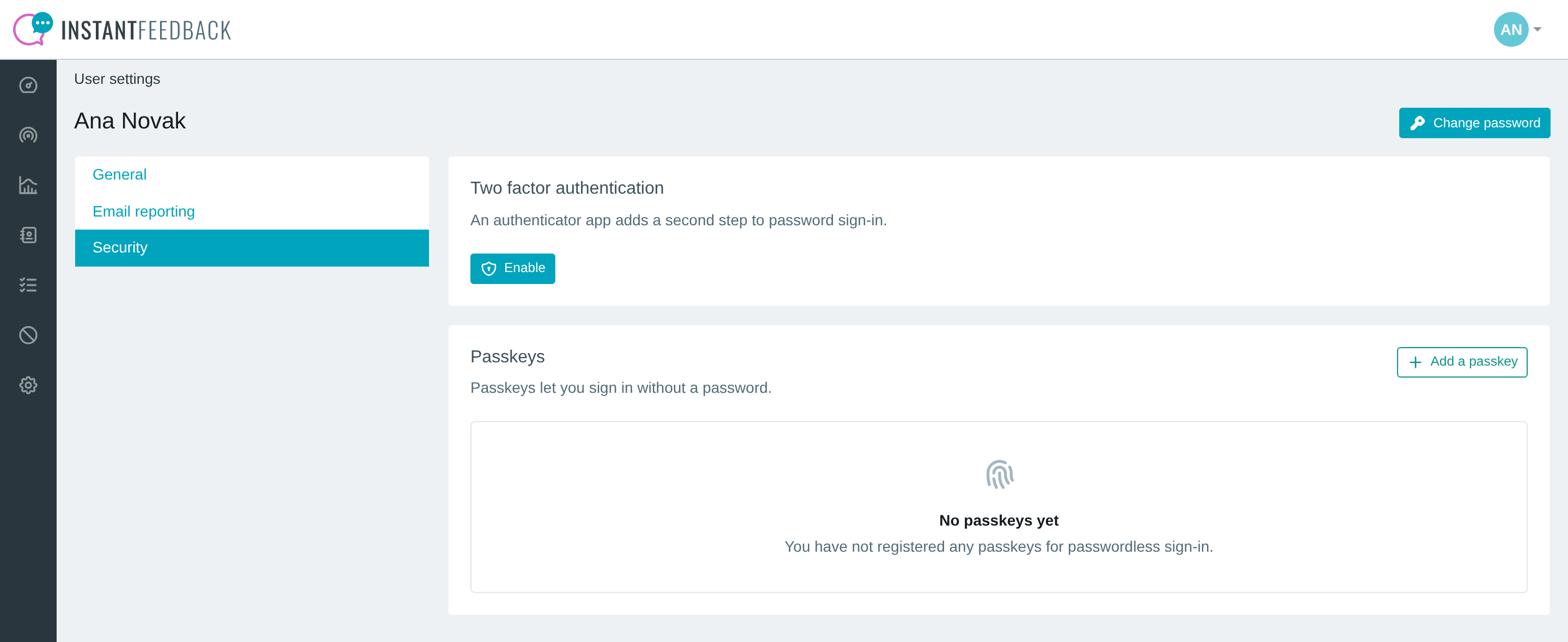
The Passkeys card before any passkey is registered.
- Your browser or password manager opens its own prompt. Choose where to store the passkey and confirm with your fingerprint, face, or PIN.
- InstantFeedback confirms with Passkey … added and lists the passkey in the table.
The passkey is named after the provider that stores it, for example iCloud Keychain or 1Password. If the provider is not recognised, the name is Unknown provider; rename it so you can tell your passkeys apart later.
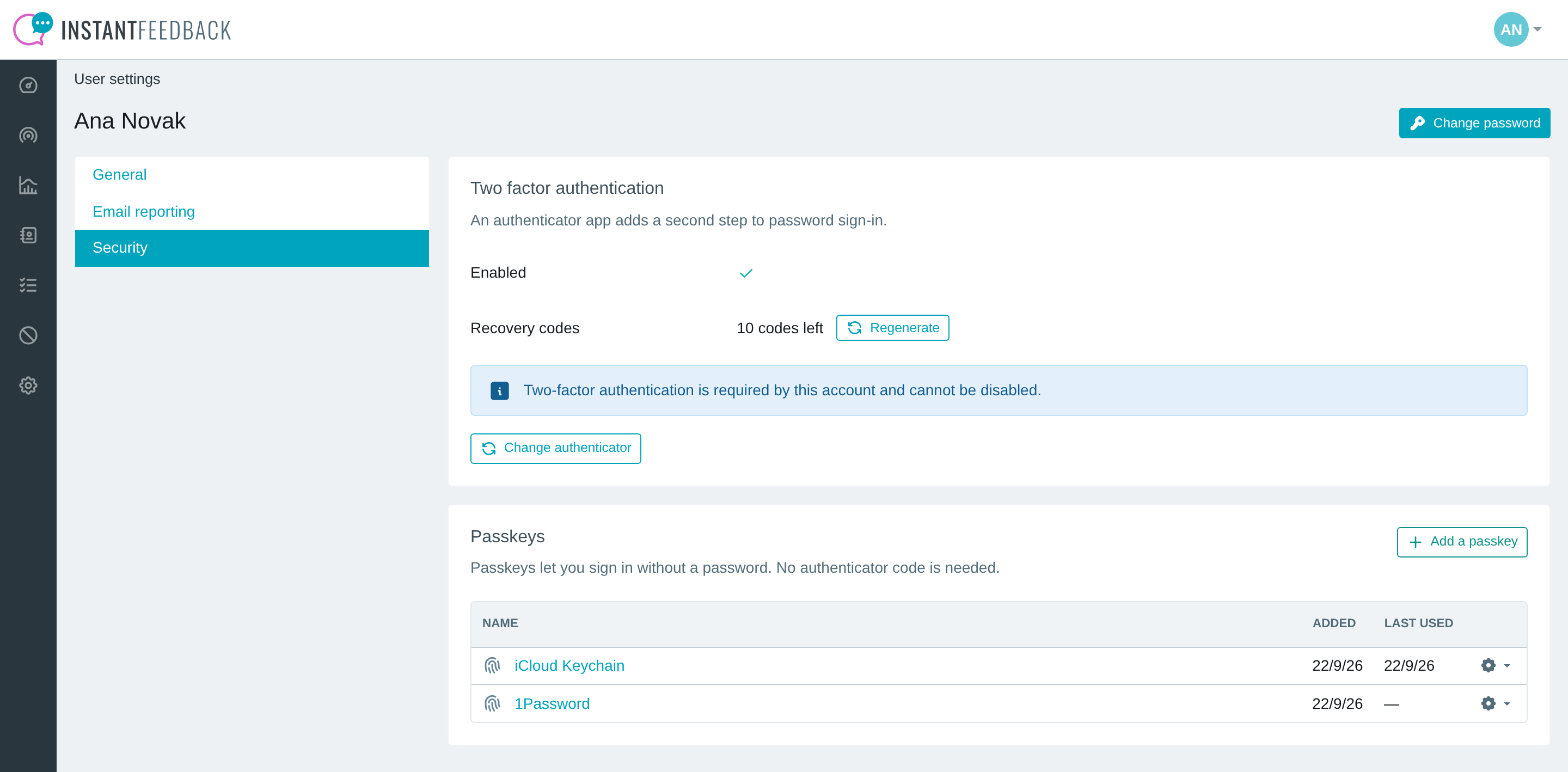
Two registered passkeys. The table shows when each was added and last used.
If the browser prompt is cancelled, nothing is saved and no message is shown. Click Add a passkey again to retry.
Sign in with a passkey
The login page shows a Sign in with a passkey button next to Login once you have used a passkey in that browser, either by adding one there or by signing in with one. The browser remembers this for a year.
- On the login page, click Sign in with a passkey. Leave the username and password fields empty.
- Pick the passkey in the browser prompt and confirm with your fingerprint, face, or PIN.
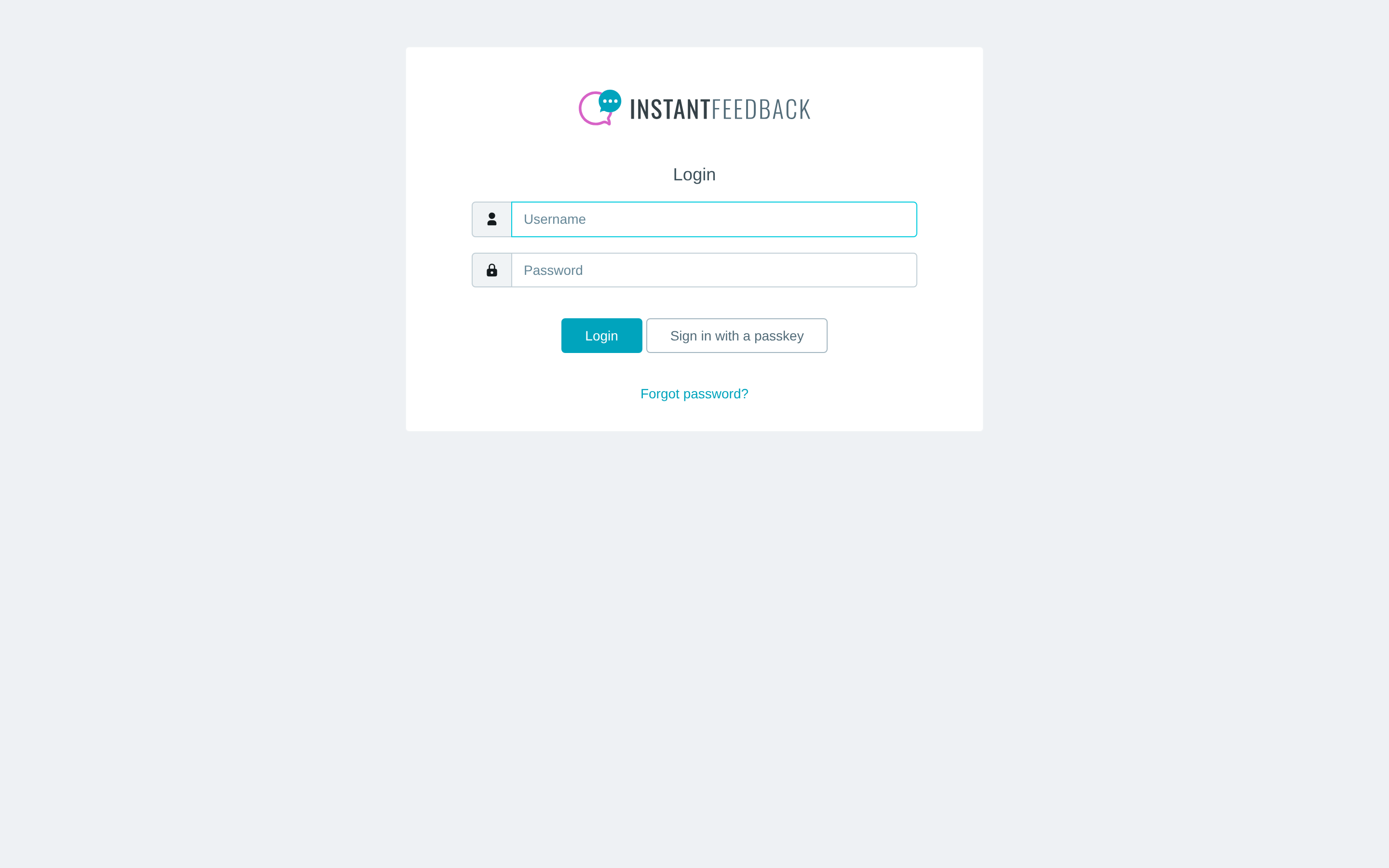
The login page in a browser where a passkey has been used before.
You are signed in straight away. The authenticator code step is skipped, even if two-factor authentication is enabled. If the account requires two-factor authentication and you have not set it up yet, the setup page still appears first.
Enable the button in a new browser
If you sign in with your password on a browser that has not used passkeys yet, and you have at least one passkey, InstantFeedback asks whether to use passkeys there.

The prompt after a password sign-in in a browser without passkey history.
- Use passkey verifies one of your passkeys and switches the Sign in with a passkey button on for that browser.
- Not now continues without changing anything. The prompt can appear again at a later password sign-in.
Browsers that do not support passkeys skip this prompt.
Rename or remove a passkey
Open User settings → Security. Each row in the Passkeys table has two actions.
- Click the name to rename the passkey. Use names that tell you which device or password manager holds it.
- Open the gear menu at the end of the row and choose Remove to delete the passkey from InstantFeedback.
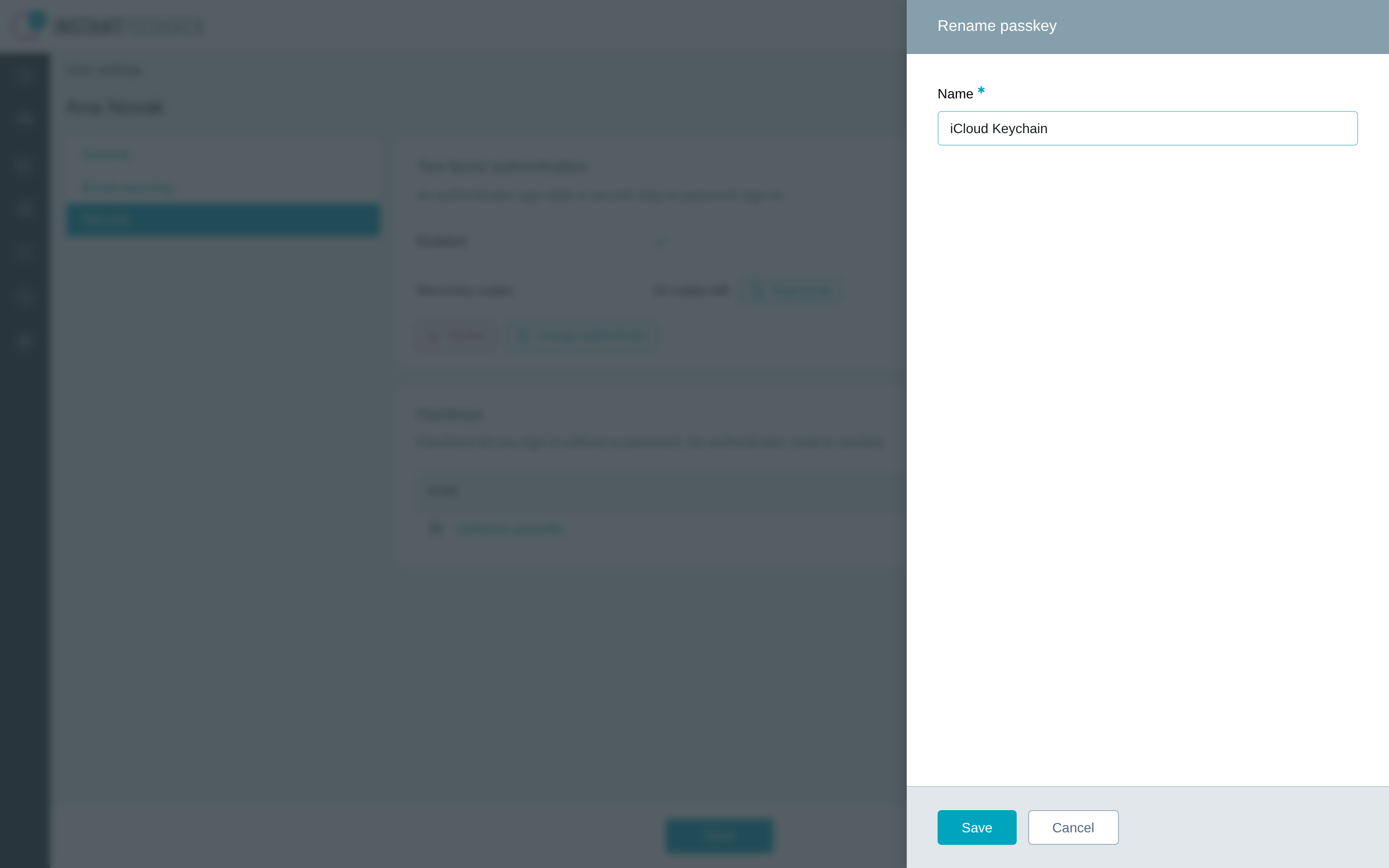
Renaming a passkey. The name is only used in this list.
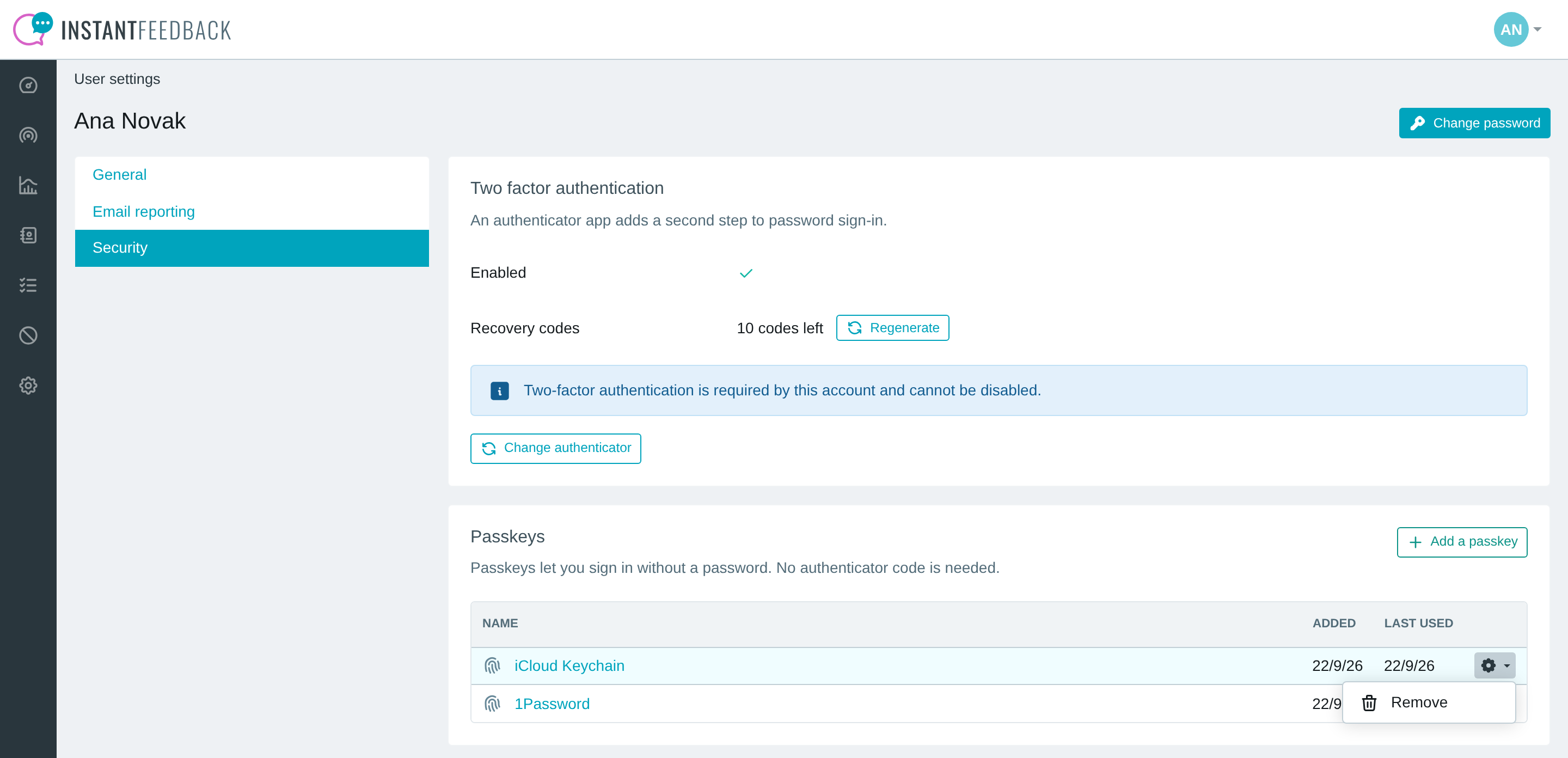
The gear menu of a passkey row.
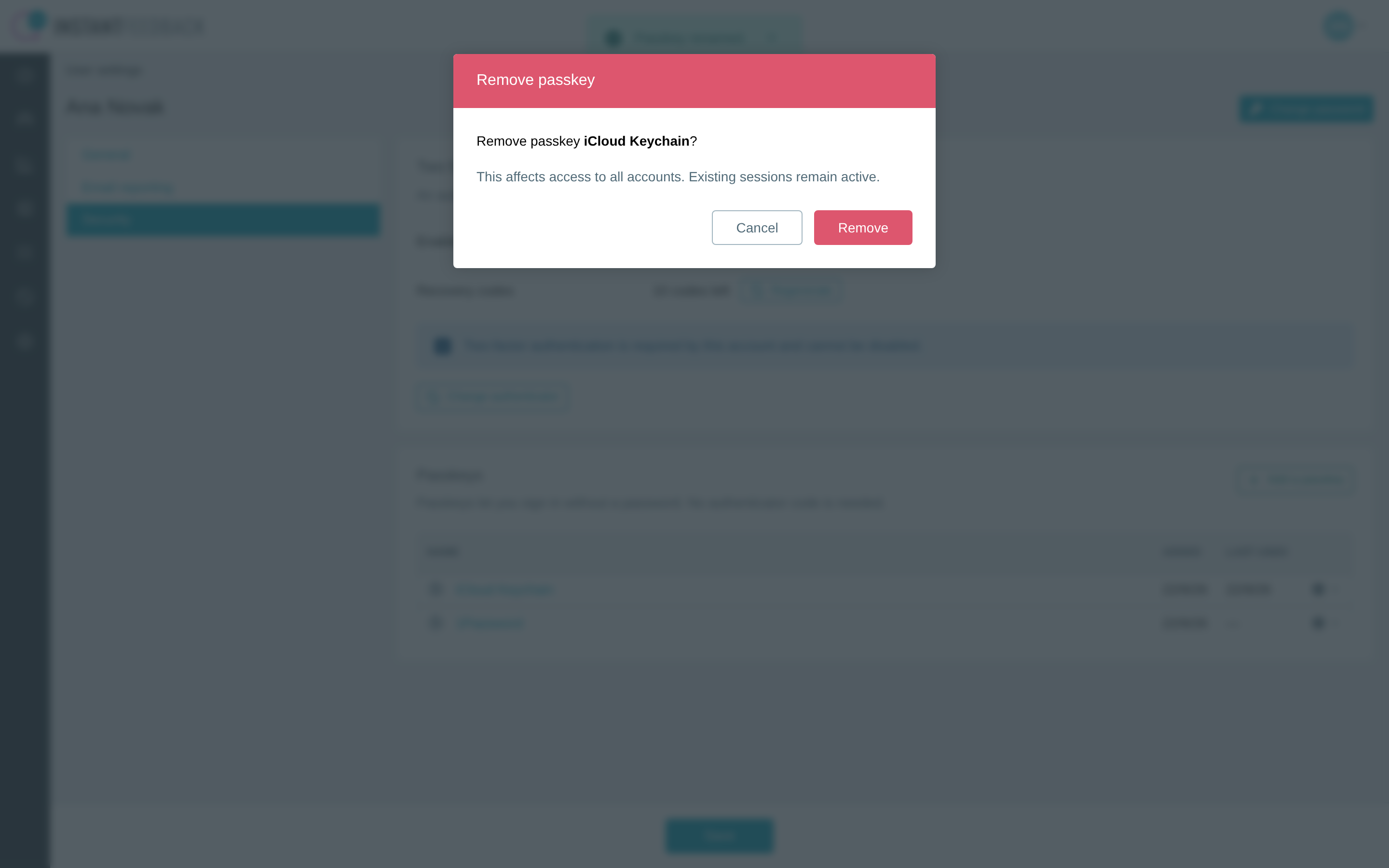
Removing a passkey. It stops working for all of your accounts, but sessions that are already signed in stay open.
Removing a passkey in InstantFeedback does not delete it from your device or password manager. Delete it there as well, otherwise the browser keeps offering a passkey that no longer works.
Passkeys and two-factor authentication
The two features are independent:
- Turning two-factor authentication off does not remove your passkeys, and removing all passkeys does not change two-factor authentication.
- When an admin resets your authenticator, your passkeys keep working.
- A passkey sign-in never asks for an authenticator code.
- An account that requires two-factor authentication still requires it from passkey users. The passkey replaces the password, not the authenticator app.
Remove a member's passkey
Account admins can see and remove the passkeys of members of their account.
- Open Settings → Users and click the member's username.
- Select the Security tab. The Passkeys card lists the member's passkeys with the date each was added and last used.
- Open the gear menu on a row, choose Remove, and confirm.
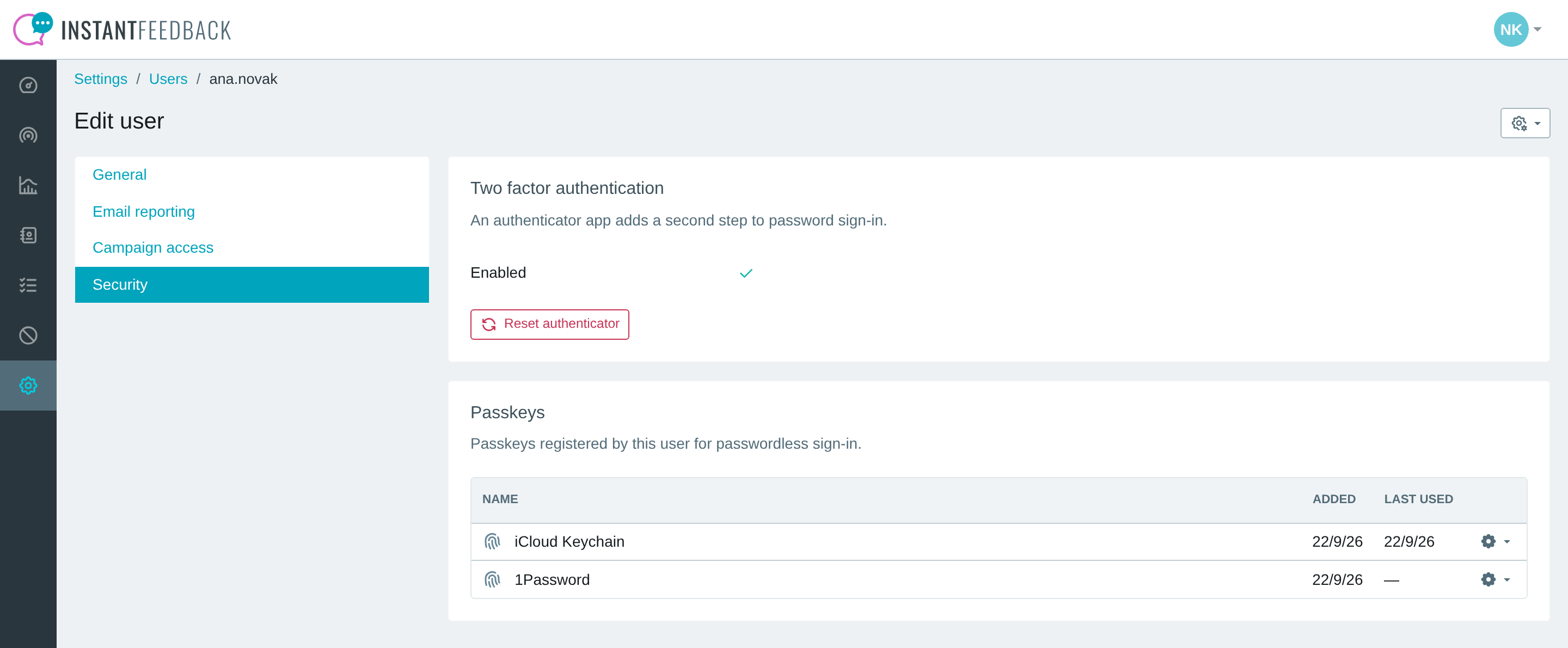
The admin view of a member's passkeys.
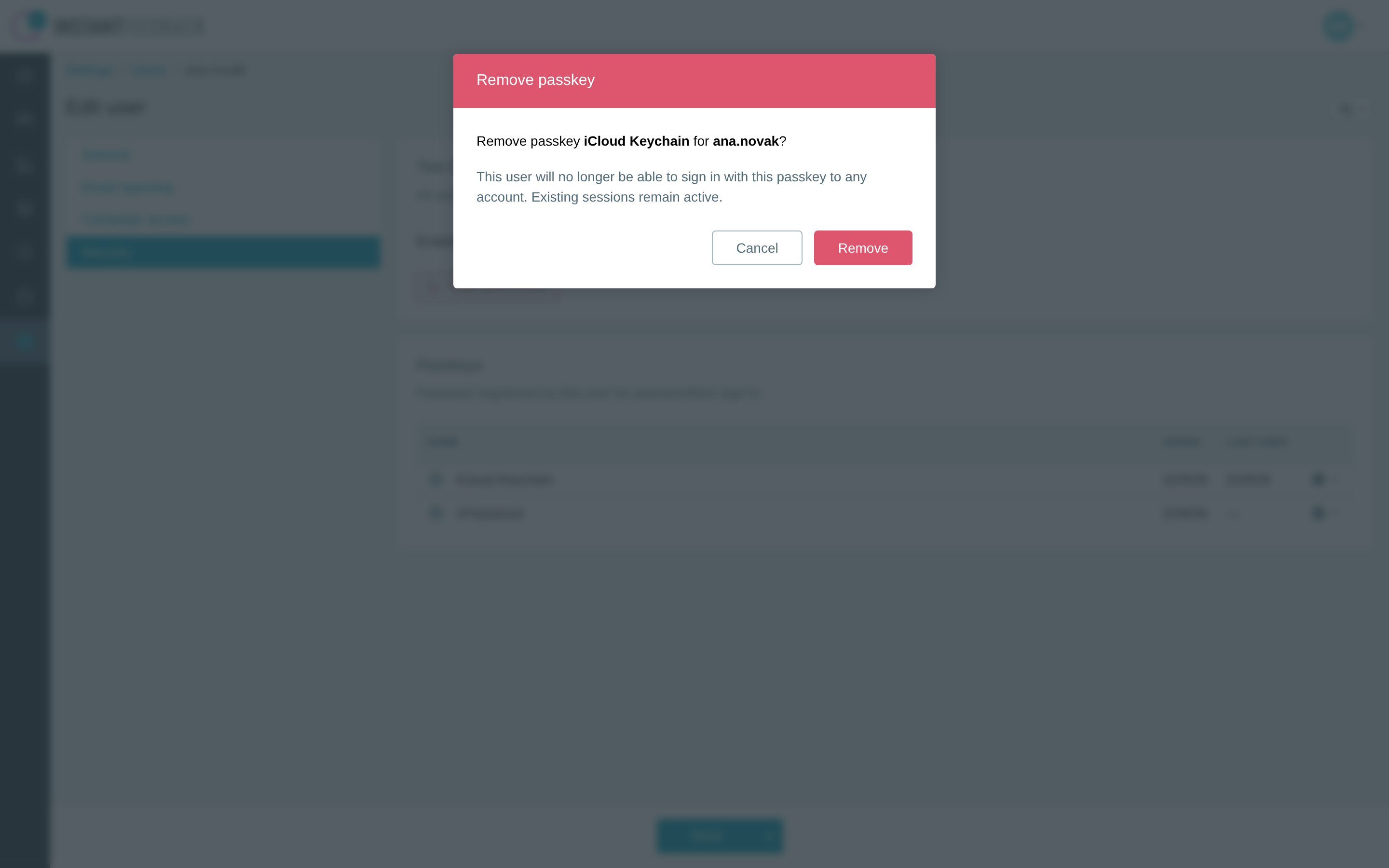
Removing a member's passkey. They can no longer sign in with it to any account; open sessions stay active.
Use this when a member reports a lost or stolen device. Removing the passkey does not sign the member out. If that is needed as well, use Reset password or Lock from the gear menu in the top-right corner of the user's page.
Troubleshooting
| Message or symptom | What to do |
|---|---|
| This browser does not support passkeys. | Update the browser, or use a current version of Chrome, Edge, Safari, or Firefox. |
| The Sign in with a passkey button is not on the login page. | This browser has not used a passkey yet. Sign in with your password and choose Use passkey when asked, or add a passkey from User settings → Security in this browser. |
| That passkey is not valid. Enter your username and password to continue. | The passkey was removed in InstantFeedback, by you or by an admin. Sign in with your password, delete the passkey from your device or password manager, and add a new one. |
| This passkey is already registered. | The passkey you chose in the prompt is already in your list. Nothing was changed. |
| Could not add the passkey. Please try again. or Passkey operation failed, please try again | The browser prompt failed or timed out. Try again; if it repeats, try another browser or password manager. |
| The browser prompt appears but does not offer any passkey. | The passkey is stored in a different password manager or on another device. Switch to it in the prompt, or add a passkey on this device. |
| The passkey is listed as Unknown provider. | The password manager did not identify itself. The passkey works normally; click the name to rename it. |