Two-factor authentication
Two-factor authentication adds a second step to password sign-in. After you enter your password, InstantFeedback asks for a six-digit code from an authenticator app on your phone or computer. Someone who learns your password still cannot sign in without your device.
- Codes come from any authenticator app that generates time-based one-time passwords, for example Google Authenticator, Microsoft Authenticator, Authy, or 1Password.
- Ten recovery codes let you sign in if you lose access to the authenticator app.
- Account admins can require two-factor authentication for every member of the account.
- Passkeys sign you in without a password and without a code, and work alongside two-factor authentication.
Before you start
- Install an authenticator app on your phone or computer and keep the device at hand.
- Check that the device's clock is set automatically. Codes are time-based, and a clock that is off by more than a minute produces codes InstantFeedback rejects.
- Two-factor authentication belongs to your user, not to an account. Once it is on, it applies to every InstantFeedback account you sign in to.
Enable two-factor authentication
- Open User settings from the menu in the top-right corner and select the Security tab.
- In the Two factor authentication card, click Enable.
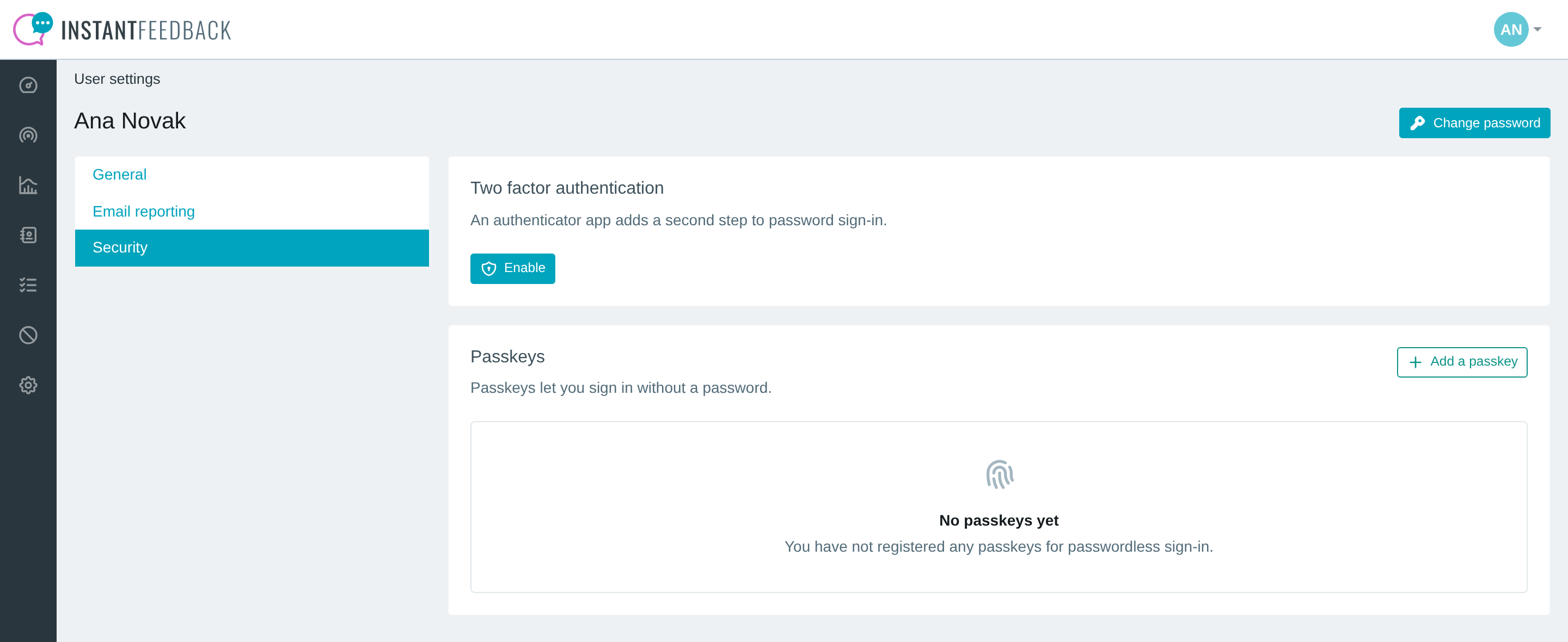
The Security tab in user settings. Two-factor authentication is off and no passkeys are registered.
- In your authenticator app, add a new account and scan the QR code. If you cannot scan, click Click to reveal secret key and type the key into the app by hand.
- Click Continue.
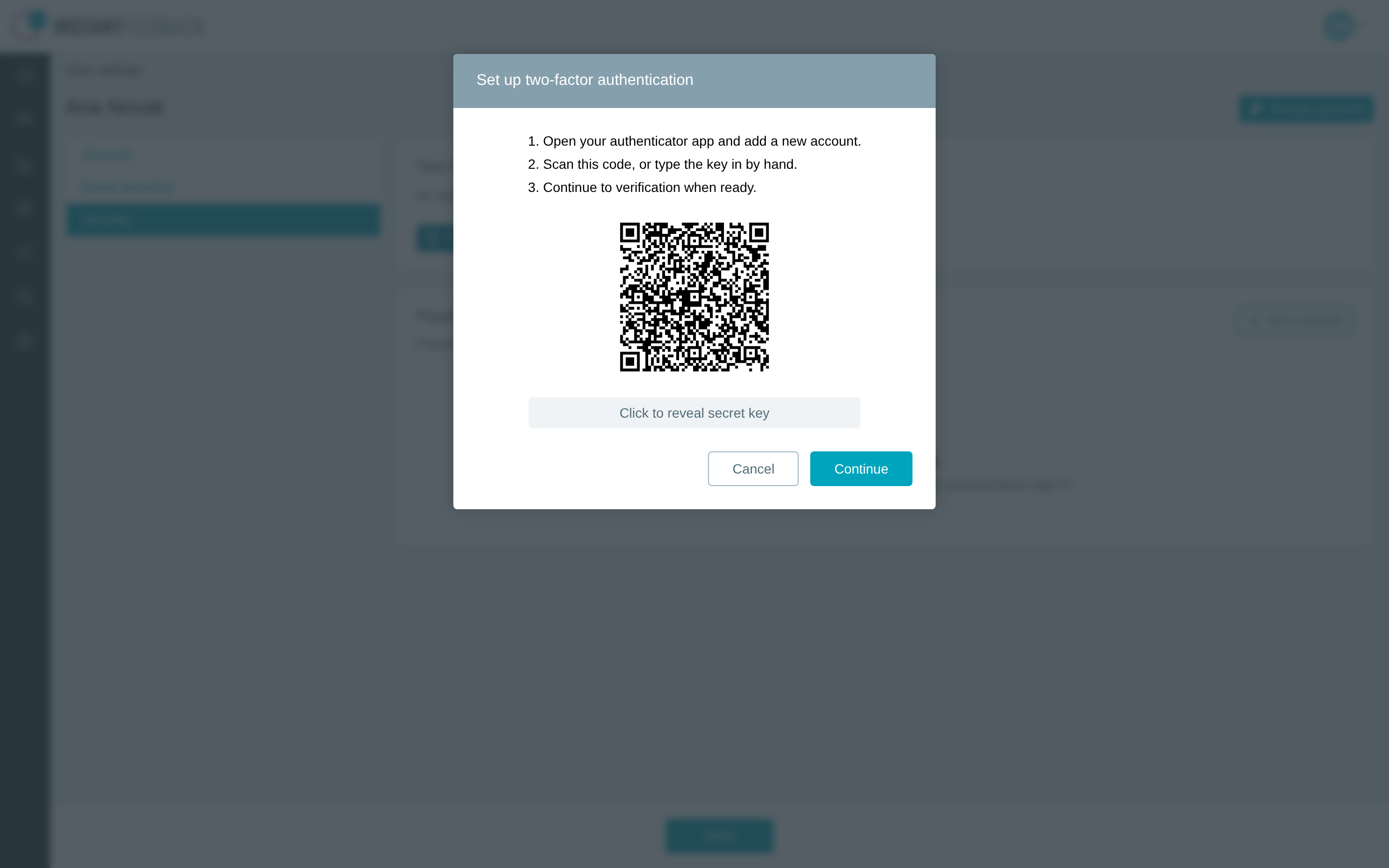
The setup dialog. Scan the QR code with your authenticator app, or reveal the secret key and type it in.
- Enter the six-digit code the app shows. The dialog submits as soon as the sixth digit is typed.
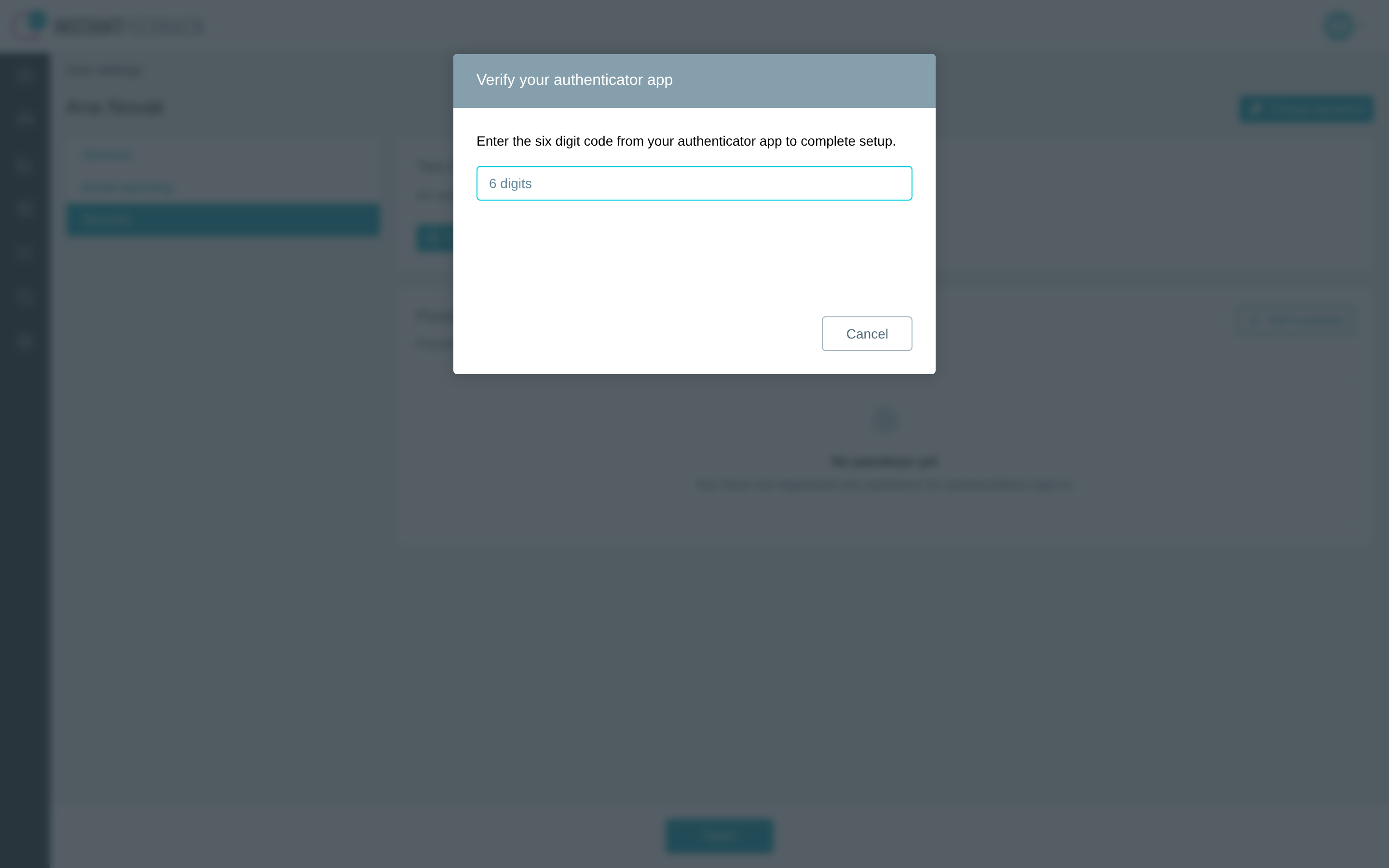
Verification. The code the app shows changes every 30 seconds; enter the current one.
- Save the recovery codes. Click Download to save them as a text file, or copy them to a password manager. Then click Finish.
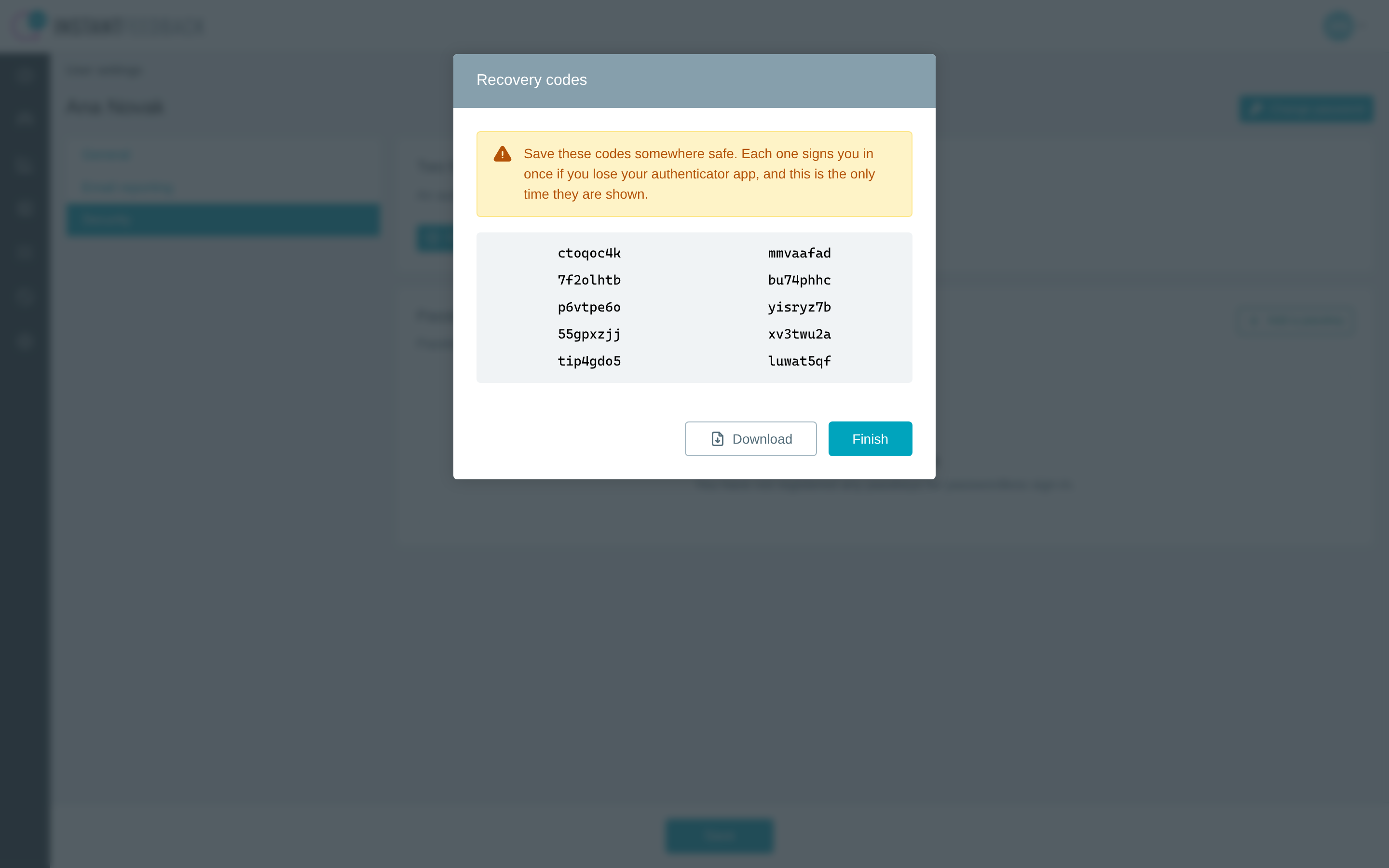
Ten recovery codes. This is the only time they are shown.
Recovery codes are shown once
Each recovery code signs you in one time if you lose your authenticator app. They are not shown again after you click Finish. If you did not save them, click Regenerate on the Security tab to get a new set; the old set stops working.
The Security tab now shows Enabled, the number of recovery codes left, and the Regenerate, Disable, and Change authenticator actions.
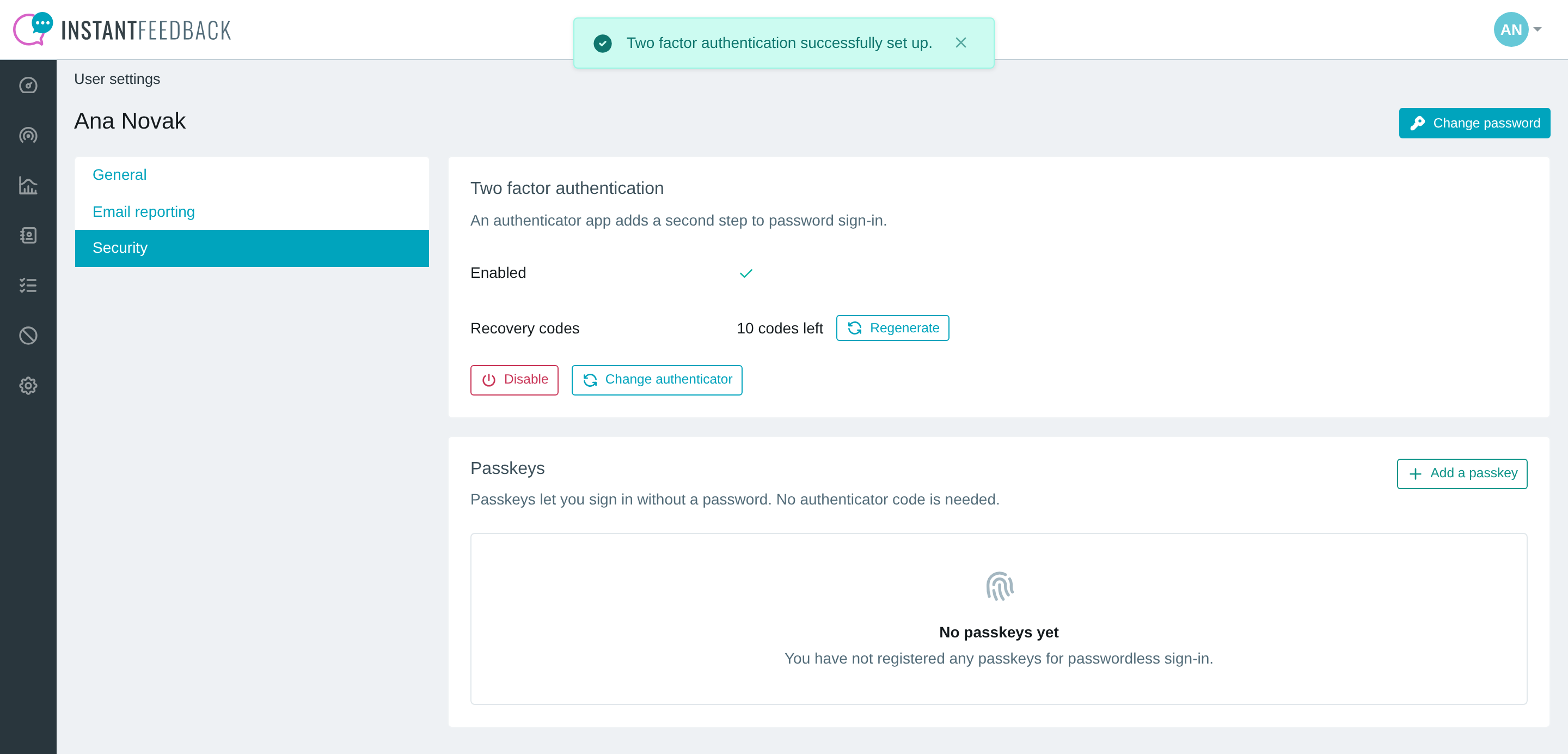
Two-factor authentication is on. All ten recovery codes are still unused.
Sign in with a code
- Enter your username and password on the login page as usual.
- On the Two factor authentication page, enter the current code from your authenticator app. The page submits as soon as six digits are typed and shows Verification successful.
- Click Continue, or wait a moment and you are taken into the app automatically.
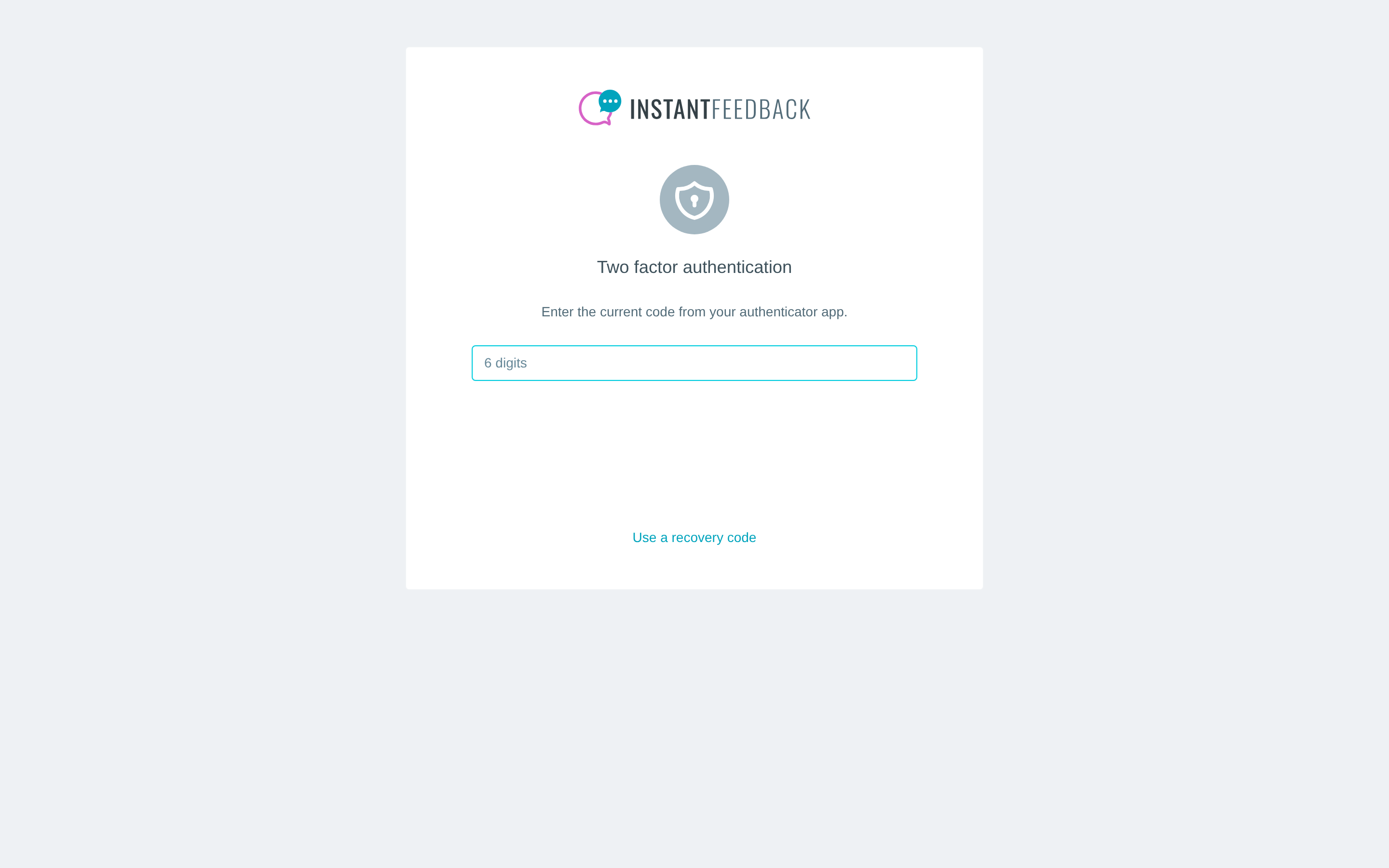
The second sign-in step. The link at the bottom switches to a recovery code.
There is no option to remember a device. The code is asked for at every password sign-in. Signing in with a passkey skips this step.
Time limits
Wrong codes are throttled: after each failed attempt you wait a little longer before you can try again, and the page shows a countdown. The sign-in step itself expires after five minutes; after that, start again from the login page.
Use a recovery code
If you do not have your authenticator app:
- On the code page, click Use a recovery code.
- Enter one of your saved recovery codes and click Verify. Spaces and dashes in the code are ignored.
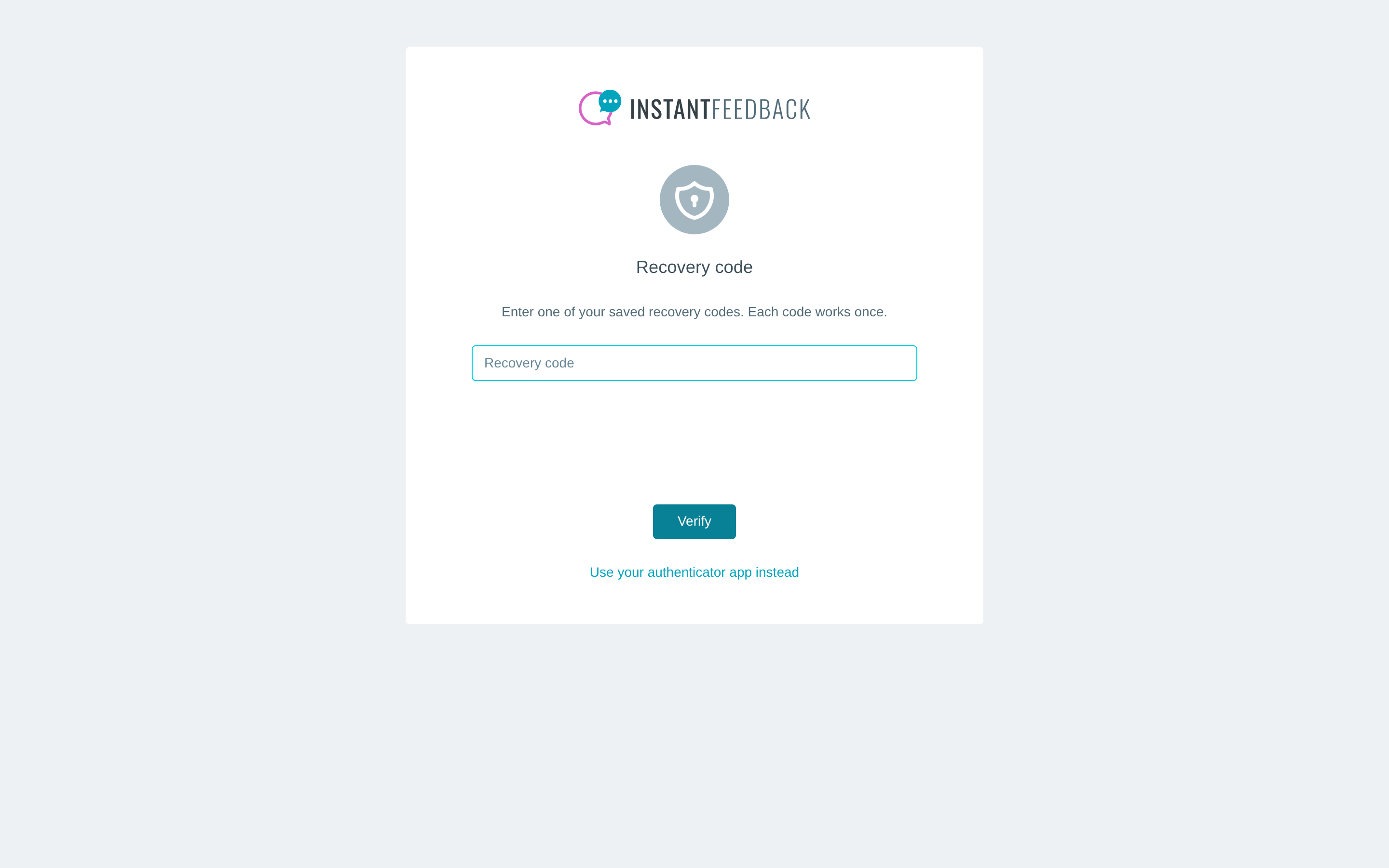
The recovery code page. The link at the bottom returns to the authenticator code.
Each recovery code works once. After you sign in, a warning shows how many codes are left.

The banner after a recovery sign-in, with the number of unused codes.
When you are running low, click Regenerate on the Security tab to get a fresh set of ten. If you have lost both the authenticator app and the recovery codes, ask an admin of your account to reset your authenticator.
Regenerate recovery codes
- Open User settings → Security and click Regenerate next to Recovery codes.
- Confirm with Regenerate. A new set of ten codes is shown; save them as before.
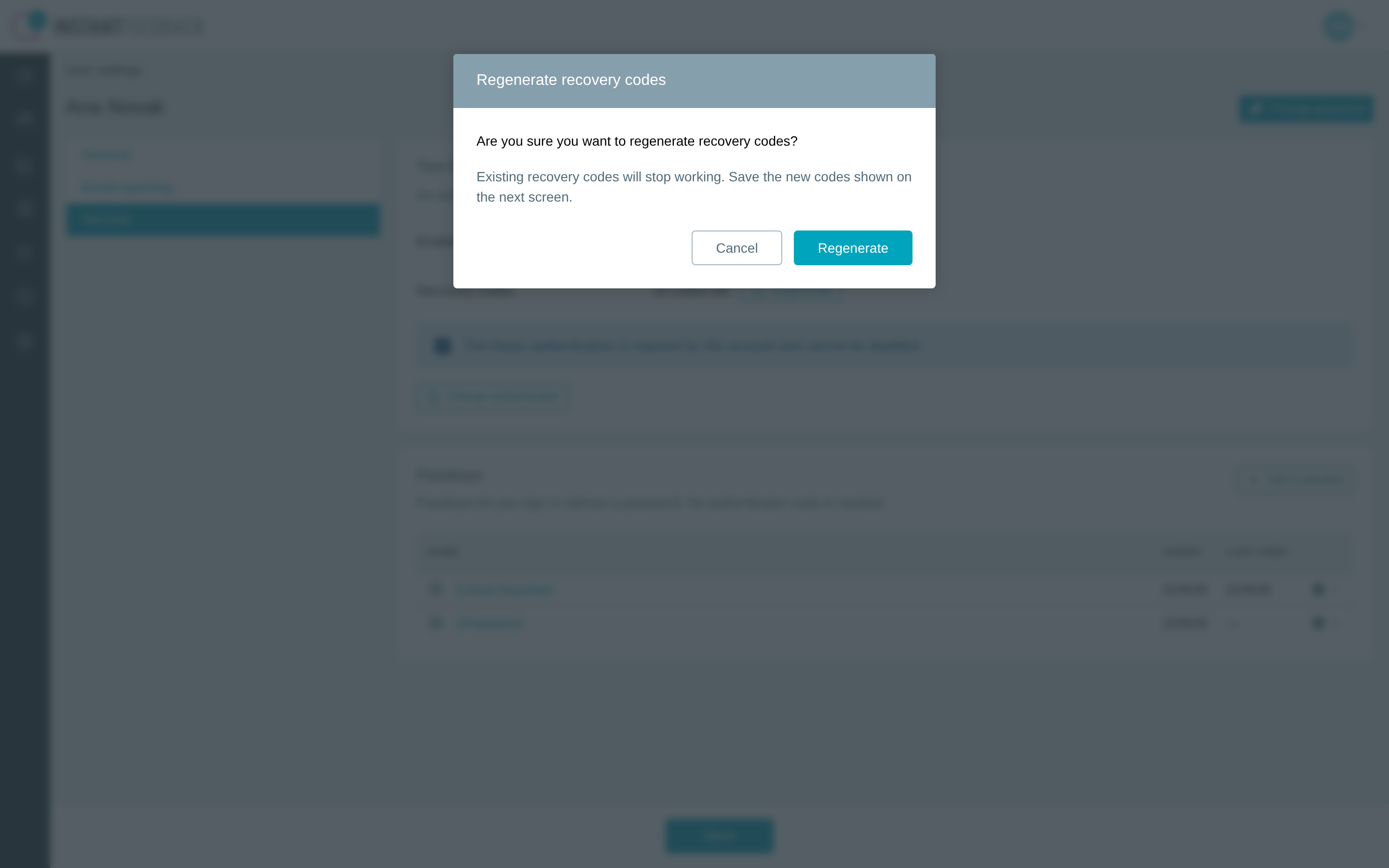
Regenerating replaces the whole set. Codes from the old set stop working immediately.
Change authenticator
Use this when you move to a new phone or a different authenticator app.
- Open User settings → Security and click Change authenticator.
- Scan the new QR code with the new app and click Continue.
- Enter the code from the new app.
- Save the new recovery codes and click Finish.
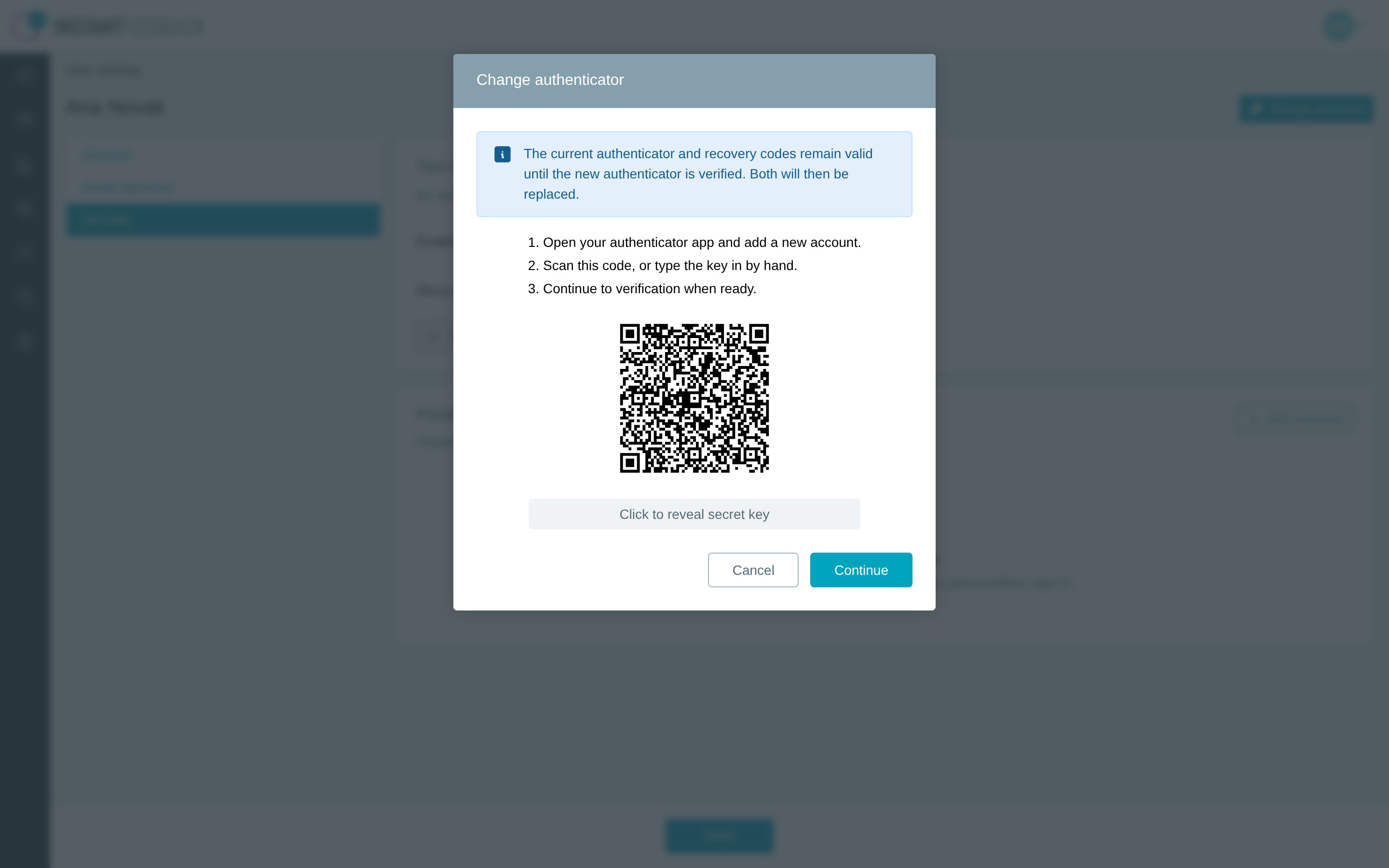
The current authenticator and recovery codes keep working until the new app is verified. Then both are replaced.
Disable two-factor authentication
- Open User settings → Security and click Disable.
- Confirm with Disable. You sign in with your password only from now on, and the recovery codes stop working. Passkeys are not affected.
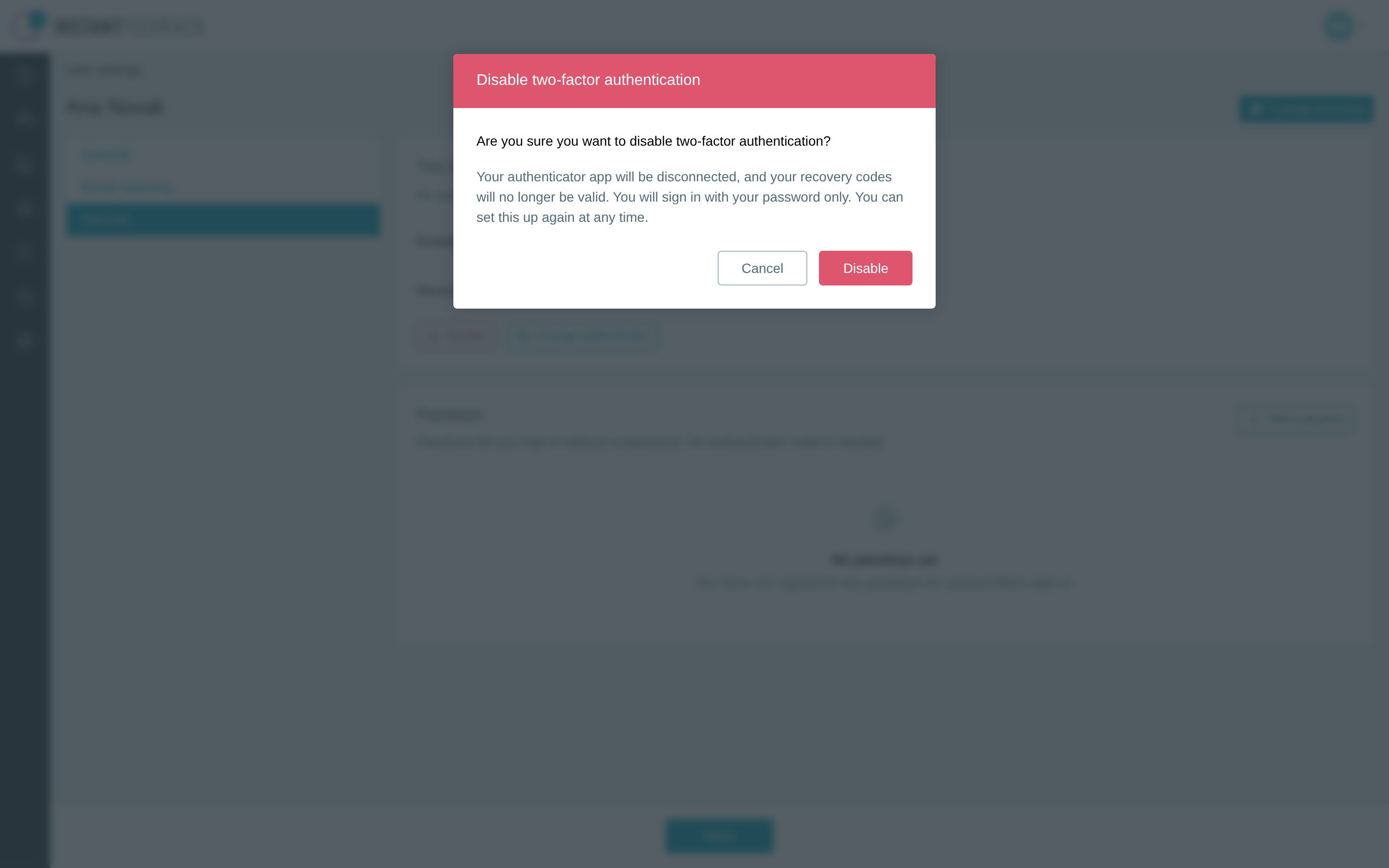
Disabling disconnects the authenticator app and invalidates the recovery codes.
The Disable button is not shown when the account you are working in requires two-factor authentication. If you belong to other accounts that require it, the dialog lists them: you lose access to those accounts until you set two-factor authentication up again.
Require two-factor authentication for an account
Account admins can make two-factor authentication mandatory for everyone in the account.
- Open Settings → Account and select the Security tab.
- Switch Required on and click Save.
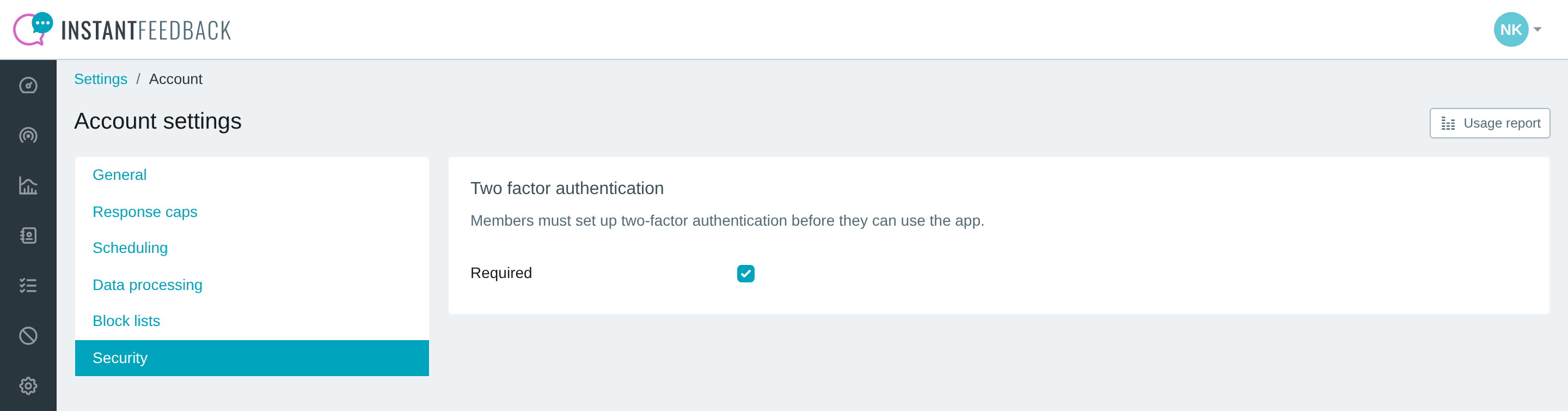
The account-level setting. It applies to every member of this account.
Once the setting is on:
- Members who already use two-factor authentication notice nothing, except that the Disable button disappears from their Security tab and an info notice explains why.
- Members who have not set it up are taken to the setup page when they next sign in, and cannot use the account until setup is complete. There is no grace period.
- The requirement is per account. A member who also belongs to an account without the requirement can still work there without two-factor authentication.
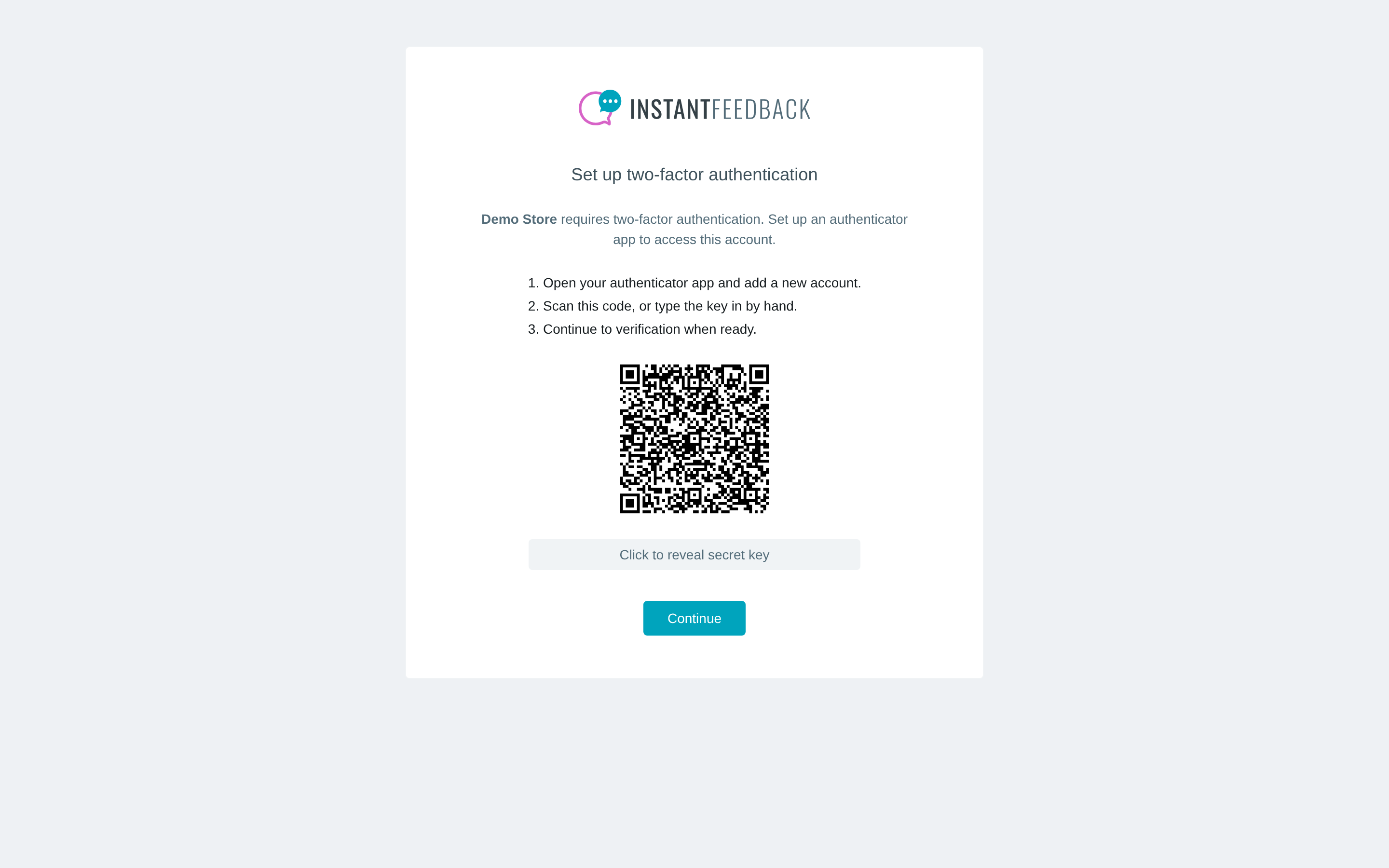
What a member without two-factor authentication sees after entering their password.
The steps on this page are the same as in Enable two-factor authentication: scan the code, verify with a six-digit code, and save the recovery codes. Finish then continues into the app.
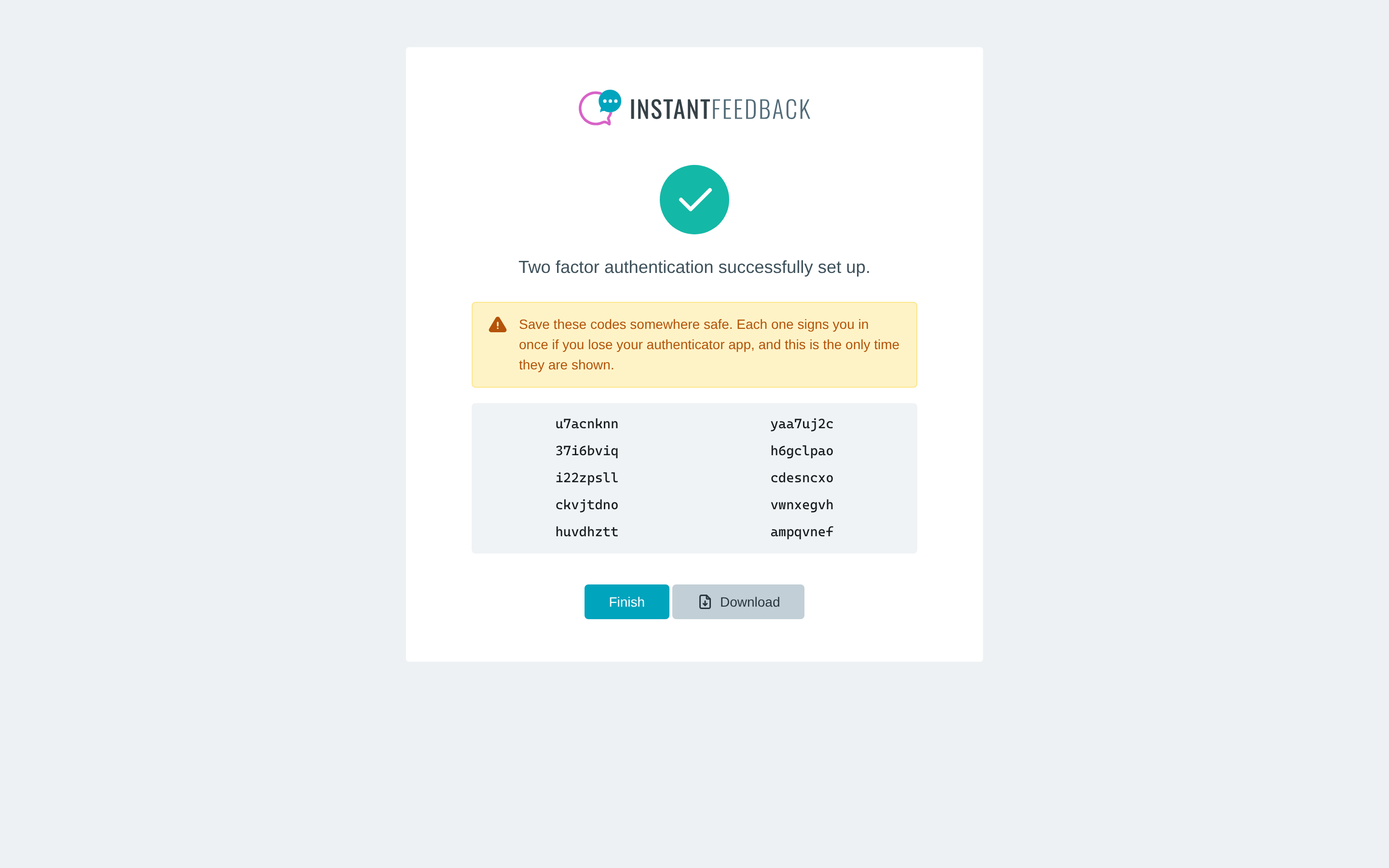
Setup completed at sign-in. Save or download the recovery codes before clicking Finish.
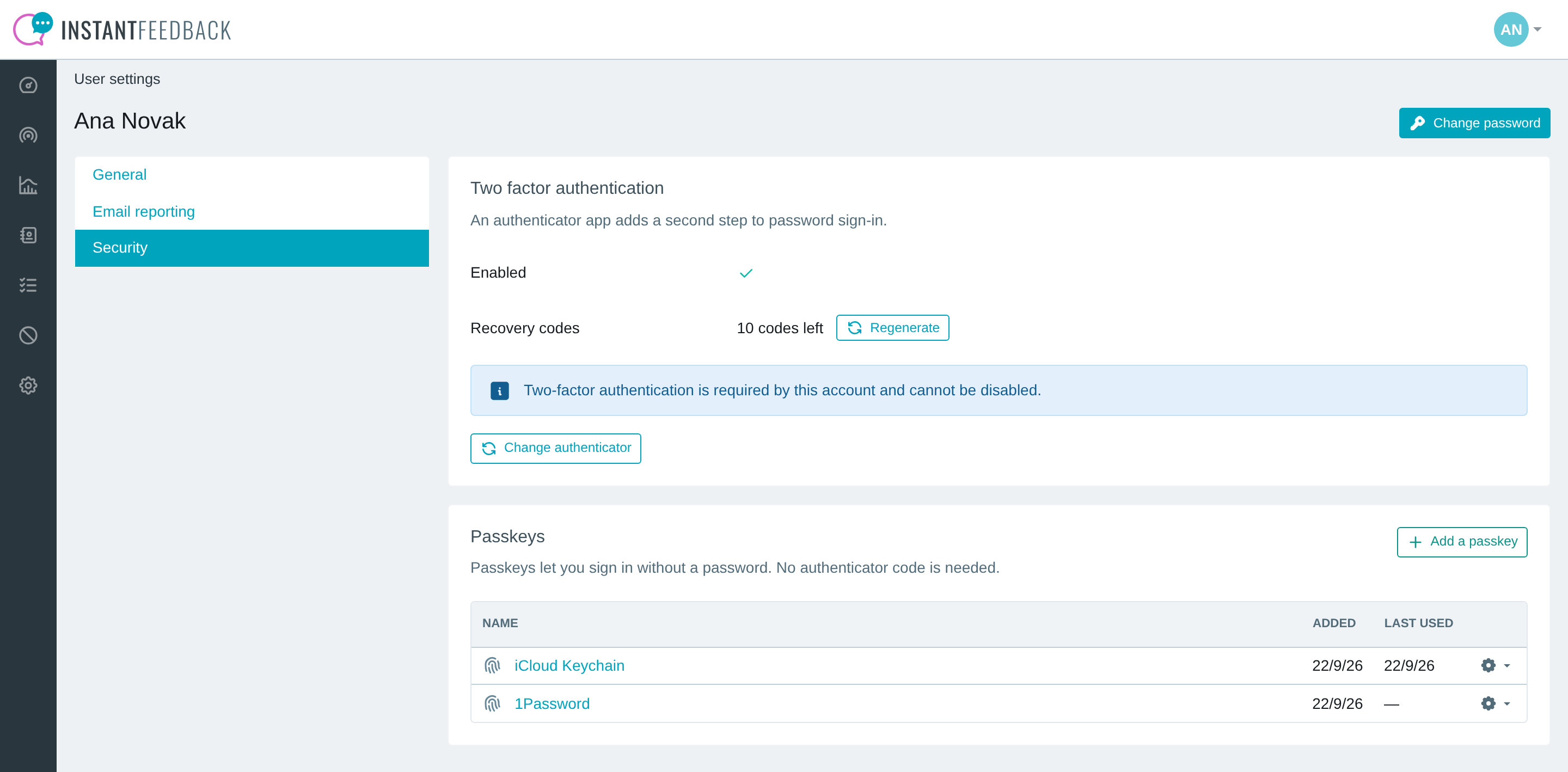
The Security tab in a requiring account. The Disable action is replaced by a notice.
Turn the requirement on before adding members
New members get the setup page at their first sign-in, so they never work without a second factor. Existing members who are signed in when you enable the requirement are asked to set it up the next time they sign in.
Reset a member's authenticator
When a member has lost both their authenticator app and their recovery codes, an account admin can reset their authenticator.
- Open Settings → Users and click the member's username.
- Select the Security tab. It shows whether two-factor authentication is enabled and lists the member's passkeys.
- Click Reset authenticator and confirm with Reset.
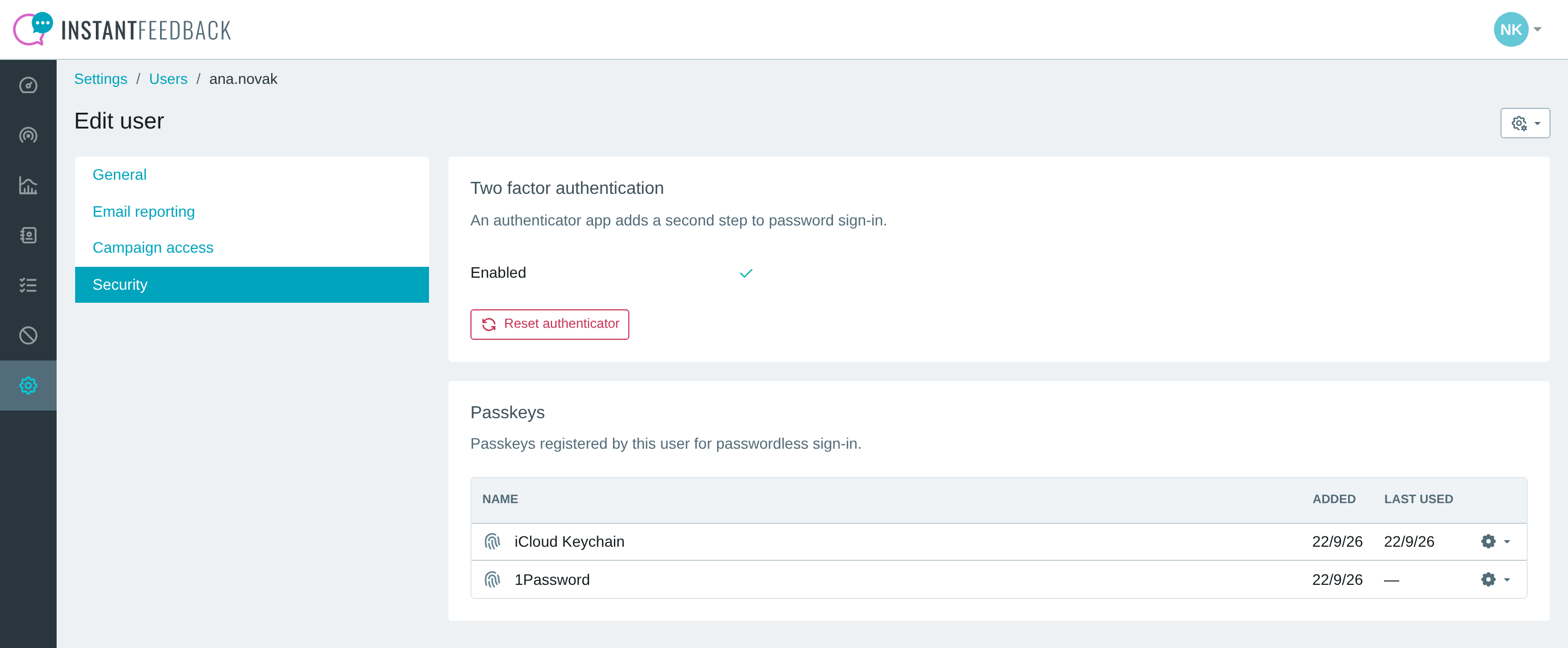
The admin view of a member's security settings.
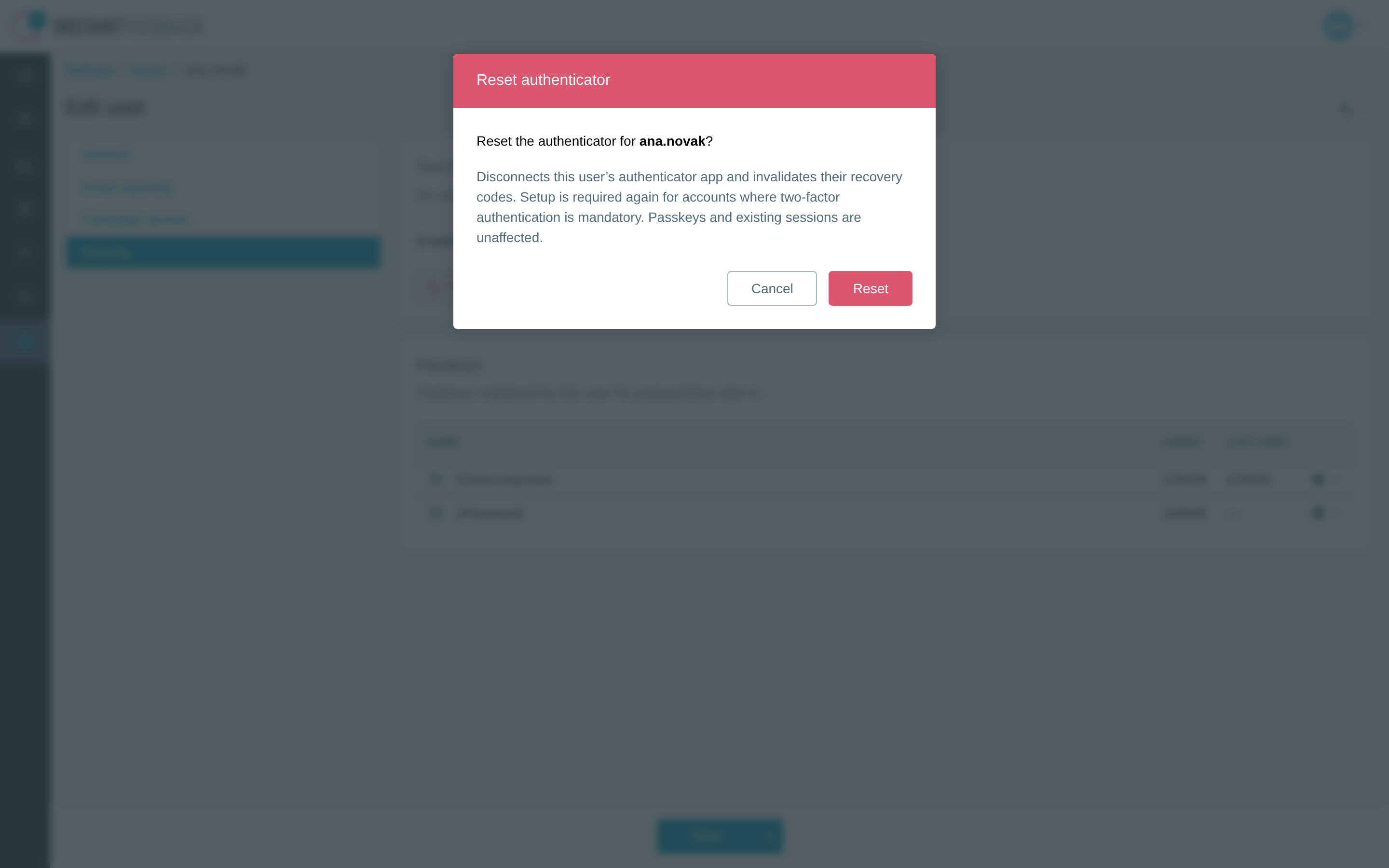
Resetting disconnects the authenticator app and invalidates the recovery codes. Passkeys and open sessions are not affected.
After the reset, the member signs in with their password only. If the account requires two-factor authentication, they are taken to the setup page at their next sign-in.
Who can reset
You need the admin role on the account, and the member must belong to the account. Admins can reset their own authenticator this way too, even when the account requires two-factor authentication.
Troubleshooting
| Message or symptom | What to do |
|---|---|
| That code is not valid. Enter the current code from your authenticator app. | Wait for the app to show the next code and try again. If it keeps failing, check that the device's clock is set automatically, and that you are reading the InstantFeedback entry in the app. |
| Too many attempts. with a countdown | Wait until the countdown ends. Each failed attempt doubles the wait. |
| Your sign-in session has expired. Sign in again. | More than five minutes passed between entering the password and the code. Start again from the login page. |
| Setup has expired. Sign in again. | Setup at sign-in took longer than five minutes. Sign in again and repeat the setup. |
| Authentication settings have changed. Sign in again. | Your authenticator was reset or changed while you were signing in. Sign in again. |
| That recovery code is not valid. Check the code, or try one you have not used yet. | The code was already used, or belongs to a set that was regenerated. Try another code from your newest set. |
| Two factor authentication is required and cannot be disabled. | The account you are working in requires it. An account admin can turn the requirement off under Settings → Account → Security. |
| Lost the authenticator app and the recovery codes. | Ask an admin of your account to reset your authenticator under Settings → Users. If you have a passkey, you can still sign in with it. |
| The Enable button is missing on the Security tab. | Two-factor authentication is already on. Use Change authenticator to move to a new device. |